


How to Download, Install and Activate TallyPrime: Complete Setup Guide
TallyPrime is one of the most widely used accounting and business management solutions for Indian businesses, accountants, CA firms, retailers, traders, manufacturers, and service providers.
A proper TallyPrime setup helps you manage accounting, GST, invoicing, inventory, banking, payroll, reporting, and business data more efficiently. In this guide, you will learn how to download, install, and activate TallyPrime, understand the difference between TallyPrime and Tally.ERP 9, configure multi-user access, migrate company data, create backups, and explore cloud or AWS-based deployment options.
What is TallyPrime?
TallyPrime is business management software used for accounting, invoicing, GST compliance, inventory control, banking, payroll, and financial reporting.
It can be used by small businesses, growing companies, accountants, auditors, CA offices, wholesalers, retailers, manufacturers, and service providers.
Before installing TallyPrime, keep your license details, company data, Windows computer, and administrator access ready.
System preparation before installation
Before downloading TallyPrime, complete the following checks:
- Use a reliable Windows computer or server.
- Log in with administrator rights.
- Maintain a stable internet connection for downloading and activation.
- Keep your Tally license or subscription details available.
- Ensure sufficient storage space for the application and company data.
- Create a backup of your existing Tally data before migration or upgrading.
- Close older Tally or accounting applications during installation.
How to download TallyPrime
- Visit the official Tally Solutions website.
- Open the TallyPrime download section.
- Choose the current TallyPrime installer suitable for your operating system.
- Download the setup file to your computer.
- Check that the file has downloaded completely before opening it.
- Right-click the installer and select the administrator option if required.
Always download TallyPrime from an authorised or official source. Avoid modified installers because accounting software contains sensitive business and financial information.
How to install TallyPrime
- Open the downloaded TallyPrime installer.
- Review the installation location and change it if your business requires a different drive.
- Select the installation type according to your requirement.
- For a single computer, install TallyPrime on the local system.
- For a multi-user environment, install the required components on the server and client computers.
- Click the installation button and wait for the process to finish.
- Launch TallyPrime after installation.
For a business using multiple computers, it is better to decide the server and client structure before installation. The server should be accessible to authorised users and should have a proper backup routine.
How to activate TallyPrime
- Open TallyPrime after installation.
- Select the option to activate or configure the license.
- Enter your registered email address or license information.
- Enter the required activation details.
- Complete the verification process.
- Wait for the license status to update.
- Restart TallyPrime if the software requests it.
If activation does not complete, check your internet connection, registered email address, license status, system date and time, and firewall settings. If the problem continues, contact Tally support or your authorised service provider.
TallyPrime vs Tally.ERP 9: why upgrade?
| Area | Tally.ERP 9 | TallyPrime |
|---|---|---|
| User interface | Traditional menu structure | More modern and user-friendly navigation |
| Search and navigation | Requires greater knowledge of menus | Improved search and faster access to features |
| Reports | Standard reporting experience | Improved report viewing, filtering, and drill-down options |
| Business workflows | Suitable for established workflows | Designed for easier day-to-day business operations |
| GST and compliance | Older compliance workflow | Newer compliance features and updated workflows |
| Future updates | Legacy product environment | Ongoing product development and feature updates |
Businesses should plan the upgrade carefully instead of installing a new version without preparing their data. Take a complete backup, verify company data, review customisations, and test important reports after migration.
Multi-user setup for TallyPrime
A multi-user setup allows authorised employees to work with the same company data from different computers. It is useful for businesses where accounts, sales, purchase, inventory, and management teams need simultaneous access.
Recommended multi-user structure
- Use one reliable computer or server as the central data location.
- Install the necessary TallyPrime components on the server.
- Connect client computers through a secure local network.
- Use separate user access credentials where appropriate.
- Restrict access to sensitive reports and company data.
- Schedule regular backups of the central data.
- Test network access before allowing all users to work simultaneously.
Do not store the main company data in an unsecured shared folder. Limit access to authorised users and use a stable network connection.
TallyPrime data migration
Data migration may be required when moving from Tally.ERP 9 to TallyPrime, shifting to a new computer, changing the data location, or consolidating companies.
- Take a complete backup of your existing company data.
- Record the existing data path and company details.
- Install TallyPrime on the new computer or server.
- Restore or connect the data using the appropriate data location.
- Open the company in TallyPrime.
- Check ledgers, stock items, vouchers, GST details, outstanding balances, and reports.
- Compare important figures with the previous system.
- Run a test invoice and verify the accounting entries.
Do not delete the old data immediately after migration. Keep the original backup safely until the new setup has been fully tested.
TallyPrime backup strategy
Accounting data should be backed up regularly because hardware failure, accidental deletion, malware, software errors, and incorrect data changes can affect business operations.
A practical backup strategy should include:
- Daily backup for active accounting data.
- Weekly backup stored separately from the main computer.
- Monthly archive backup for long-term reference.
- At least one offline backup or external storage copy.
- Encrypted or access-controlled storage for sensitive data.
- Periodic restoration testing to confirm that backups actually work.
Do not rely on only one backup location. A backup that has never been restored or tested may not be reliable during an emergency.
TallyPrime on AWS or cloud: is it useful?
Cloud or AWS deployment may be useful for businesses that need remote access, multi-location operations, centralised data, or a server that can be maintained professionally.
Benefits of cloud deployment
- Access to the accounting environment from multiple locations.
- Centralised data storage and administration.
- Reduced dependence on a single office computer.
- Better support for remote accounting teams.
- Possibility of scheduled server backups.
Important costs to consider
- Cloud server or virtual machine charges.
- Windows licensing costs, where applicable.
- Tally licensing requirements.
- Remote access or support costs.
- Backup storage charges.
- Security, monitoring, and maintenance expenses.
The final cost depends on the number of users, server configuration, storage requirements, backup plan, remote access method, and support arrangement. A small business should compare the total monthly cost with the cost of maintaining a local server or office computer.
Improve your Tally workflow with Snexa tools
Installing TallyPrime is only the first step. Businesses and accounting professionals often spend significant time converting bank statements, importing vouchers, reconciling bank transactions, and preparing management reports.
Snexa productivity tools can help simplify several Tally-related workflows.
Snexa BankBookMatch
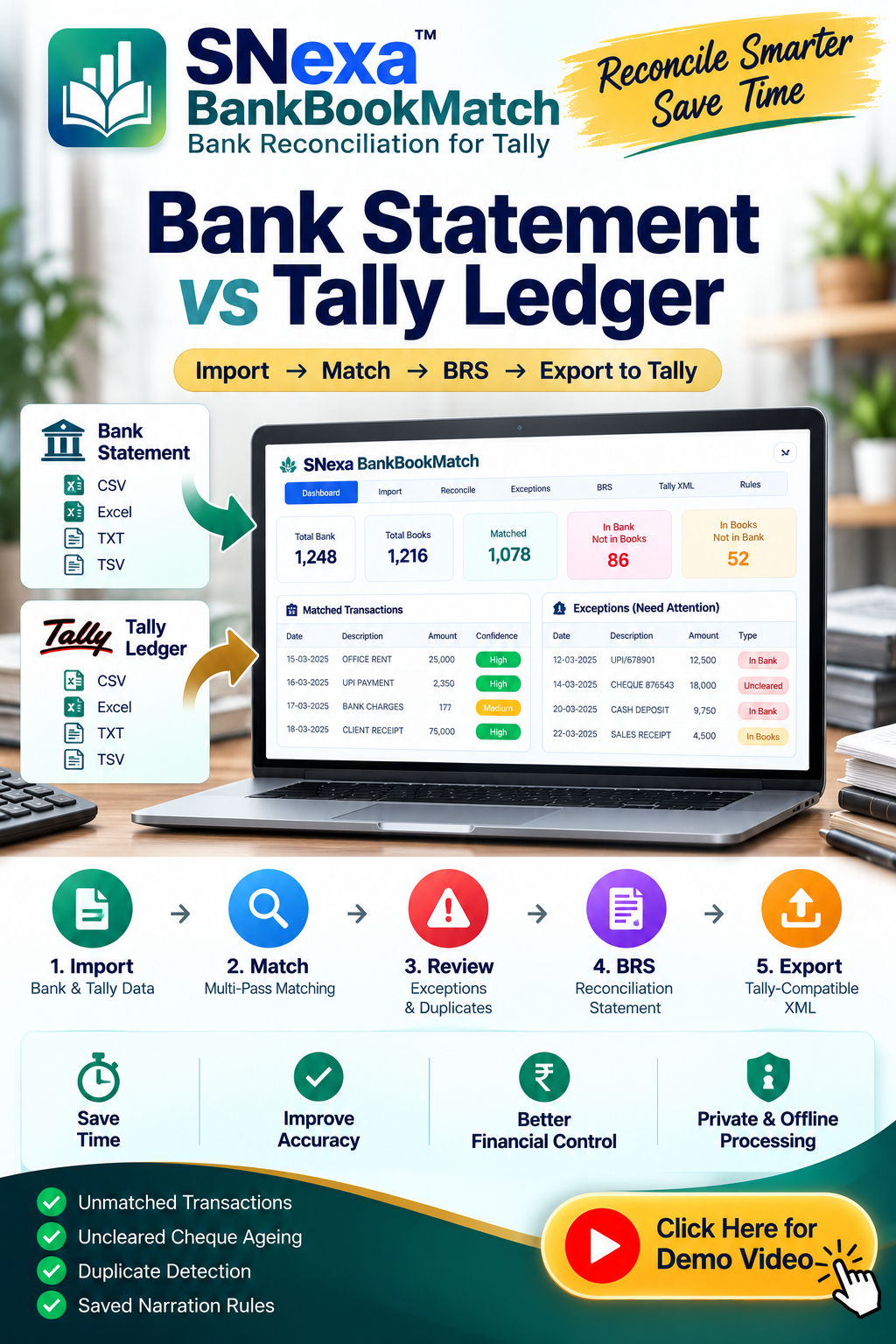
Snexa BankBookMatch helps compare bank records with Tally data for bank reconciliation and transaction matching. It is useful for accountants, businesses, and CA firms that want to identify unmatched or differing transactions more efficiently.
Explore Snexa BankBookMatch for bank vs Tally reconciliation
Snexa TallyMIS
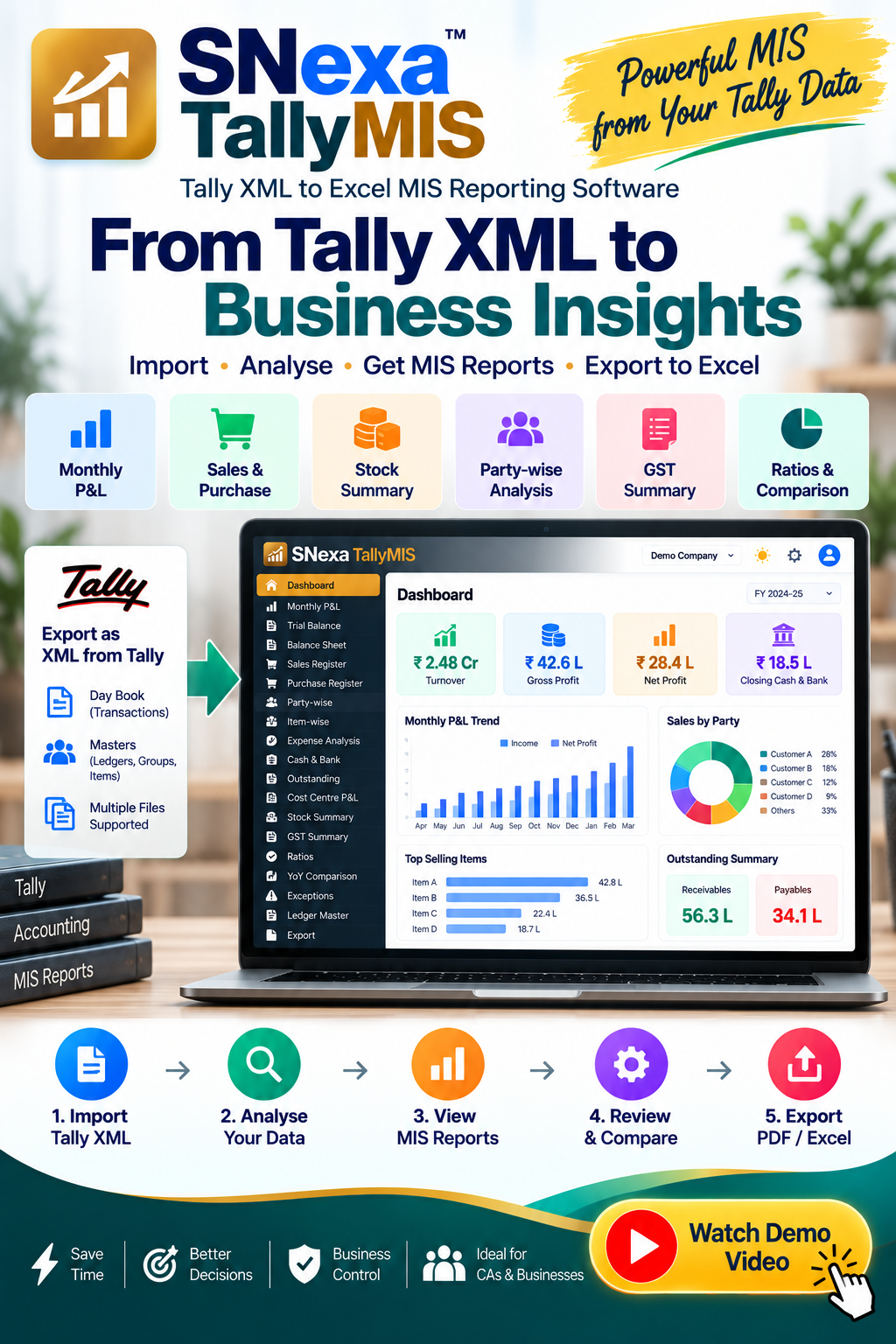
Snexa TallyMIS converts Tally XML data into Excel-based MIS reports for business owners, accountants, and CA professionals. It can help organise accounting information for review, analysis, and management decision-making.
View Snexa TallyMIS for Tally XML to Excel MIS reporting
Snexa StatementToTally Pro
Snexa StatementToTally Pro is designed to help convert bank statements into Tally XML or Excel formats. This can reduce repetitive manual entry when importing eligible bank transaction data into Tally.
Discover Snexa StatementToTally Pro

Snexa Tally Voucher Suite
Snexa Tally Voucher Suite helps convert Excel voucher data into Tally XML for import. It can be useful for businesses and professionals managing large volumes of sales, purchase, receipt, payment, journal, or other voucher records.
Learn more about Snexa Tally Voucher Suite

Final checklist after TallyPrime setup
- Confirm that TallyPrime opens correctly.
- Verify license activation.
- Check company data and financial year details.
- Test GST, invoicing, inventory, and banking workflows.
- Verify user access and permissions.
- Complete a backup and test restoration.
- Check migrated ledgers, vouchers, stock items, and reports.
- Document the data path and backup location.
- Train users on the new TallyPrime workflow.
- Use suitable tools to reduce manual reconciliation, reporting, and data entry work.
Conclusion
A successful TallyPrime setup requires more than downloading and installing the software. Businesses should also plan license activation, data migration, multi-user access, backups, security, and reporting workflows.
Once TallyPrime is configured correctly, tools such as Snexa BankBookMatch, Snexa TallyMIS, Snexa StatementToTally Pro, and Snexa Tally Voucher Suite can help reduce repetitive accounting work and improve the movement of data between bank statements, Excel, and Tally.
Choose the right setup according to your business size, number of users, data volume, security requirements, and reporting needs.


